
How to UntarX
Book and Manage Your Consultation Appointment Easily
UntarX allows you to schedule and manage your consultation appointments in a simple and structured way. From booking your session to attending the consultation, every step is designed to ensure a smooth and secure experience. Follow the steps below to understand the full process.
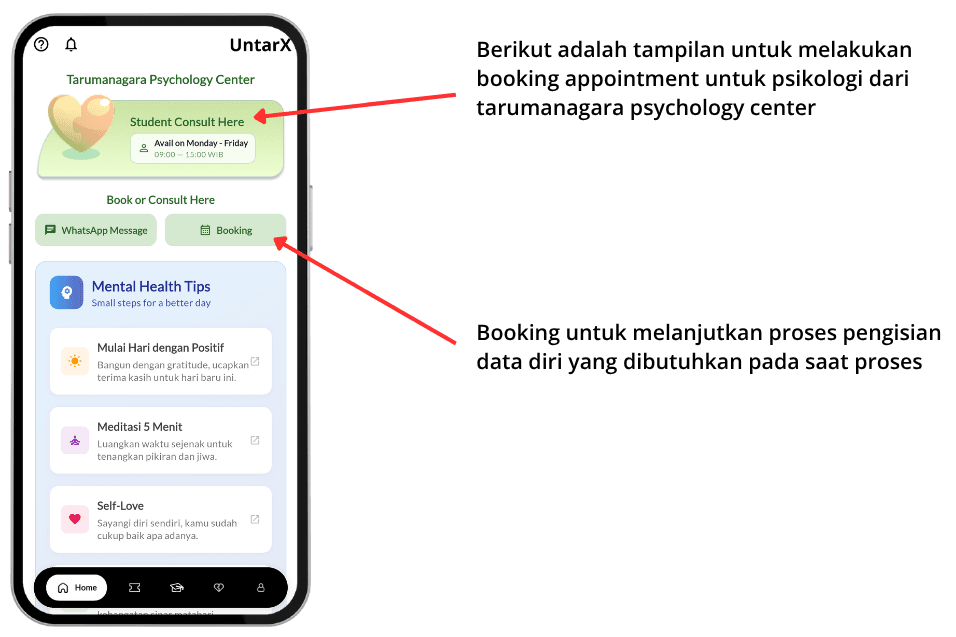
Start from the Homepage
On the homepage, you will find the Booking Appointment section. Click the “Book Appointment” button to begin the process of scheduling your consultation.
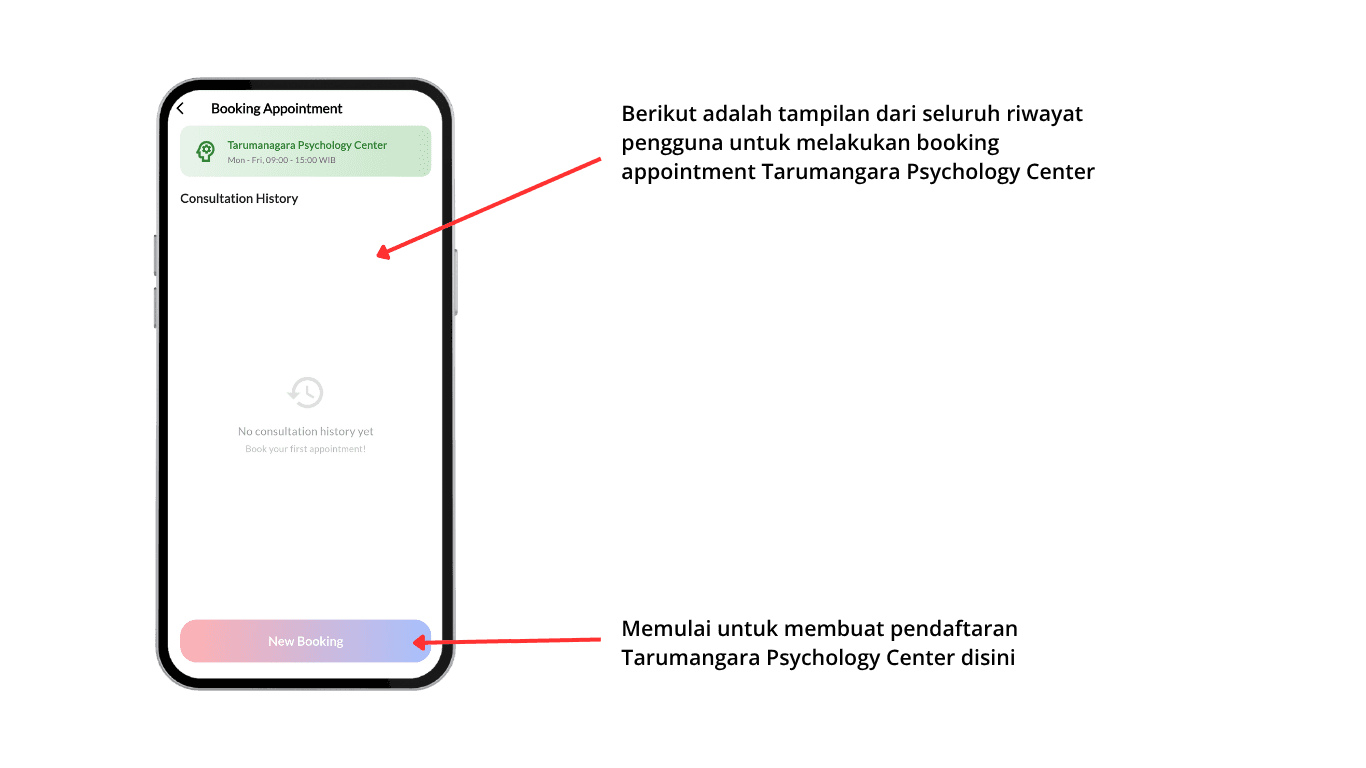
Access Appointment Dashboard
After clicking the booking button, you will be directed to the Appointment page. This page serves as your dashboard, where you can view your appointment history as well as any ongoing or pending booking requests.
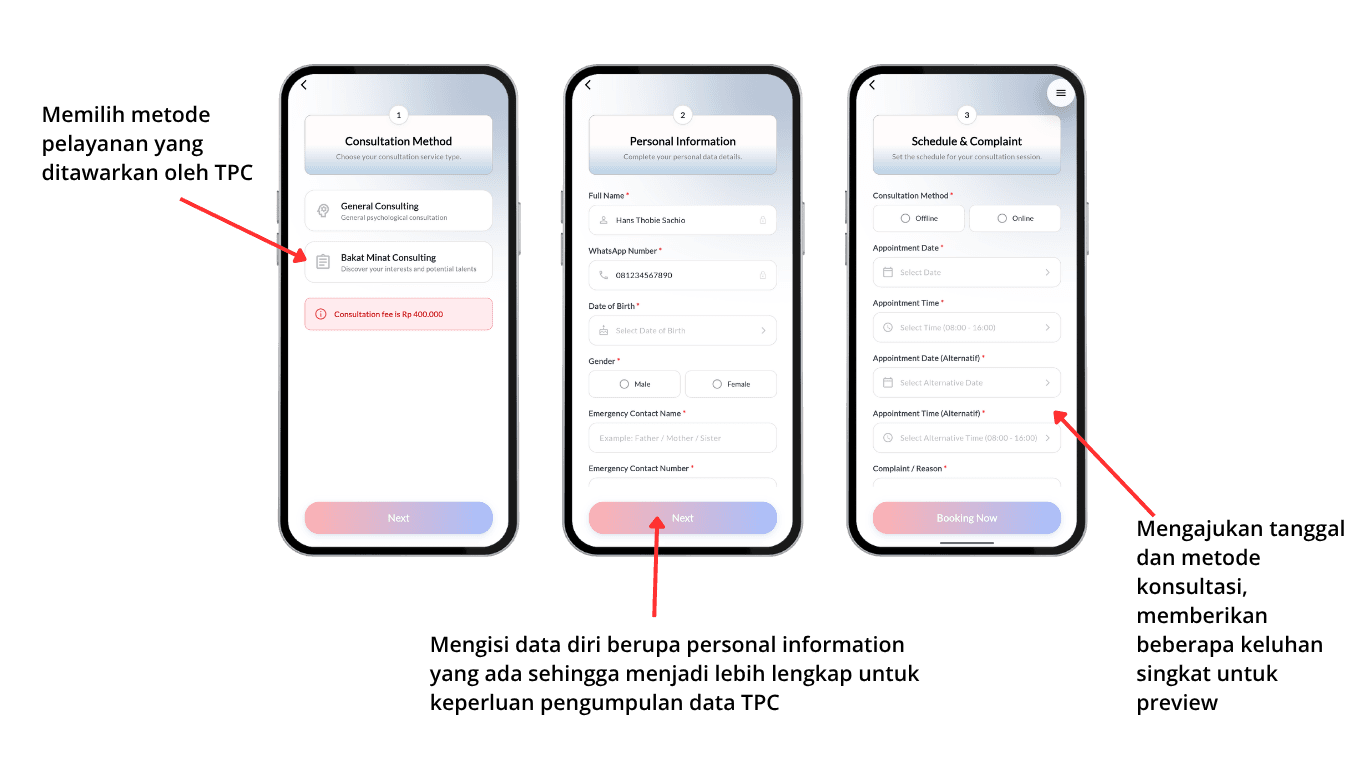
Submit a Booking Request
To create a new appointment, fill in the required information including: Type of consultation, Your personal details Preferred consultation time (primary schedule), Alternative time (backup schedule) Make sure all information is accurate to ensure a smooth scheduling process
Waiting List & Payment Process
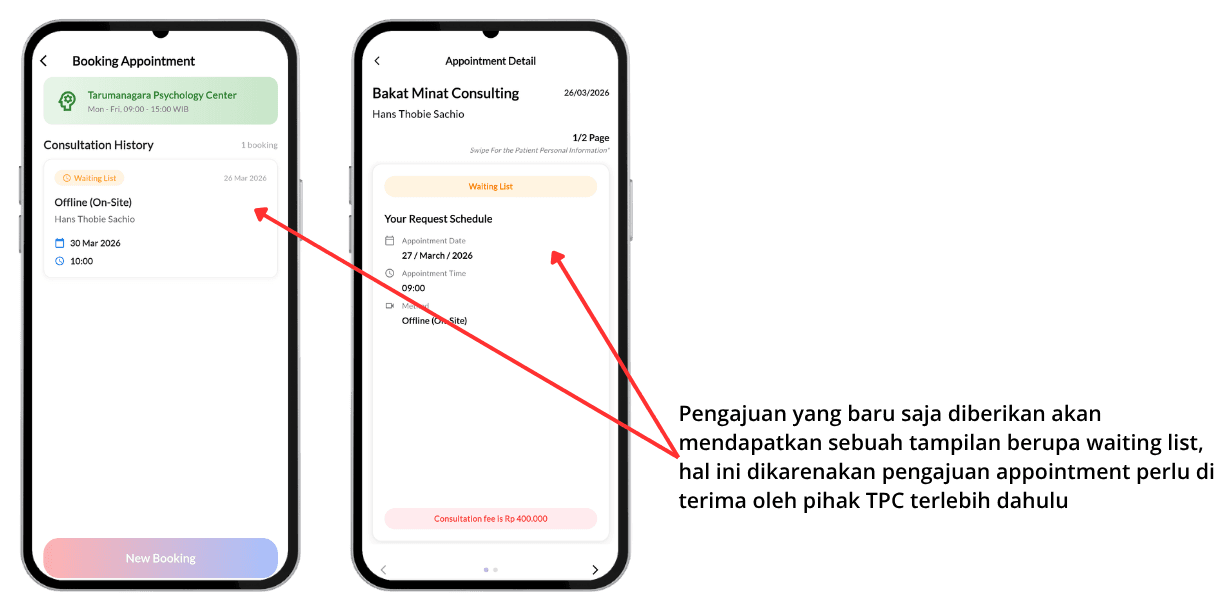
Once your booking request is submitted, your appointment will enter a waiting list status. During this stage, your request is being reviewed. If applicable, you may proceed with the required payment while waiting for confirmation.
Appointment Confirmation & Details
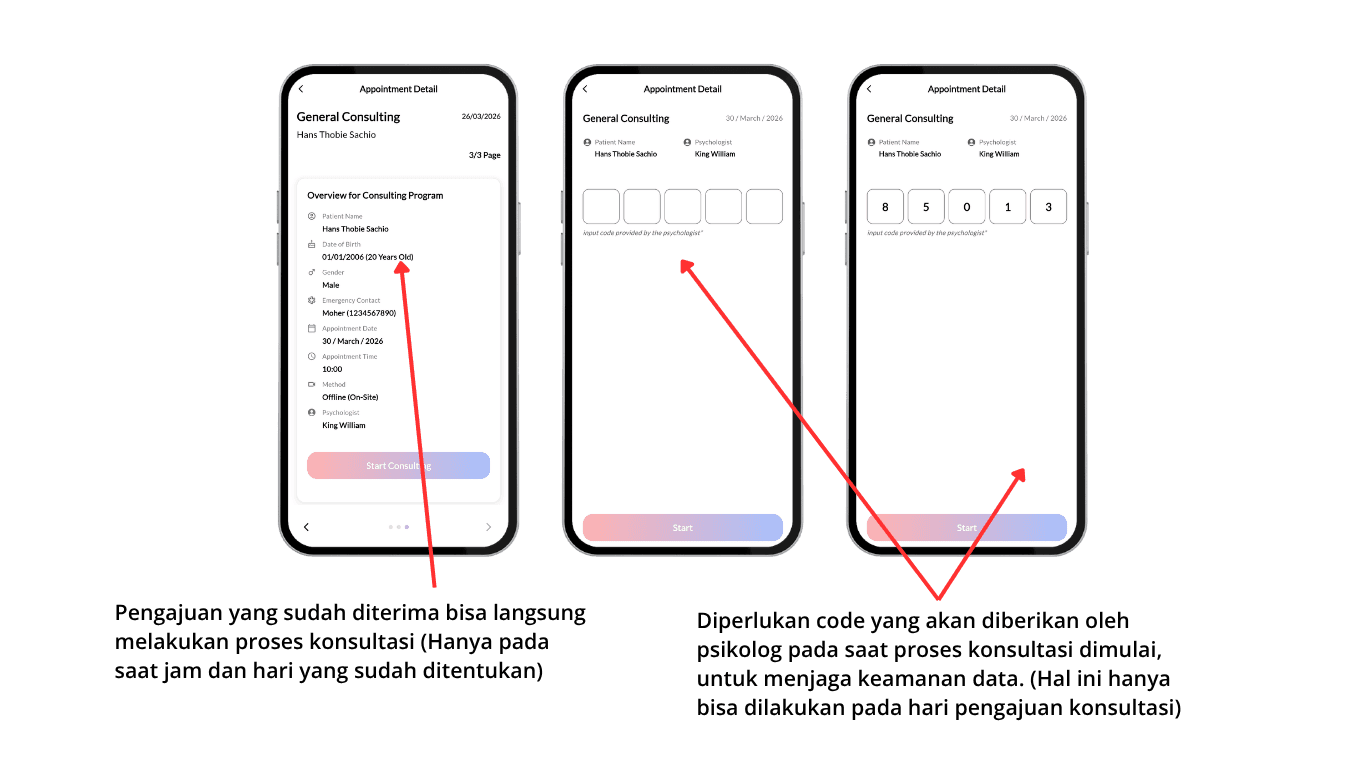
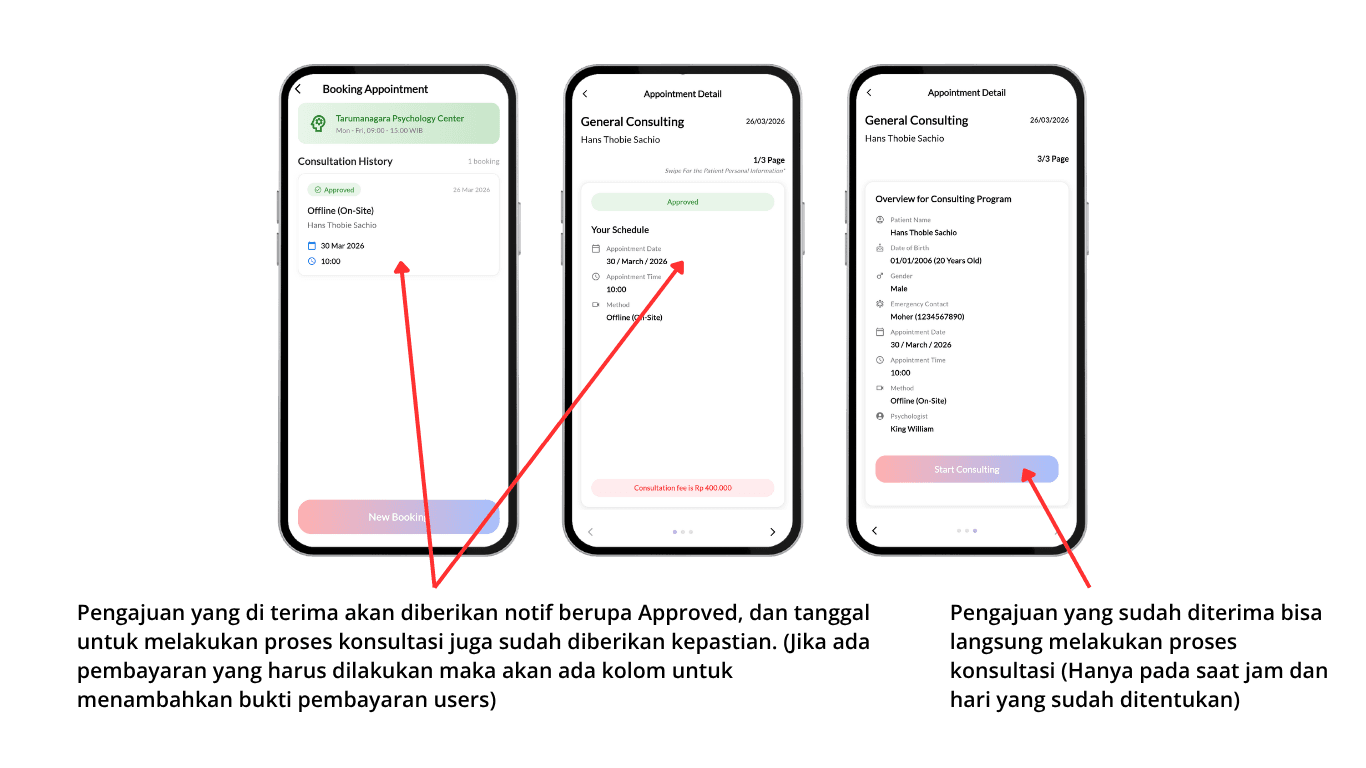
After your request is approved, you will receive the confirmed schedule for your consultation. The details will include the exact date and time of your session. When the scheduled time arrives, you can start your consultation by clicking the “Start Consultation” button (available only during your assigned time).
Start and Complete the Consultation
To begin the consultation, you must be present at the designated location. You will also need to enter a verification code provided by the psychologist to access your session. Once the consultation is completed, make sure to properly end the session through the platform.